Navigation: Cart Settings > Shipping Management >
Fed-Ex, UPS and USPS Realtime Configuration


|
Navigation: Cart Settings > Shipping Management > Fed-Ex, UPS and USPS Realtime Configuration |
|
This section can be used to set or edit realtime-shipping gateway (UPS, USPS and Fed-Ex Gateway Settings).
To set up realtime shipping gateway follow the steps:
1. Open the Shipping Management page.
Note: By default, the Shipping Management page opens under Shipping Settings tab.
In the Shipping Management page, click on Real-time Shipping Configurations tab.
2. The Real-time Shipping Configurations page opens.
3. UPS Gateway Settings: Enter the following information, as shown in the Figure 6-31-1 below.
a. To set up UPS real-time shipping you will first need to have an account with UPS. To set up an account
b. Next you will need to generate a XML access key though UPS to get rates. To generate this key, login to your UPS account and generate a Developer Key by going to the following location: https://www.ups.com/e_comm_access/laServ?CURRENT_PAGE=INTRO&OPTION=ACCESS_LICENSE&loc=en_US
c. Once that is complete, you will have the ability to generate a XML access key. Once you have that key, copy and paste that information into the UPS area of the cart along with the username and password to your account.
The following URLs exist for connecting the cart to UPS:
https://www.ups.com/ups.app/xml/Rate
https://www.ups.com/ups.app/xml/Track
UPS Rate Chart: Select from the UPS Rate Chart drop down menu, which rate chart (Regular Daily Pickup, On Call Air, etc.) applies to the shipment. By default, this is Regular Daily Pickup. Regular Daily Pickup rates are the lowest published rates, and apply to the majority of UPS shipments.
UPS Container: UPS Container drop-down menu allows you to specify the shipping container type (Your Packaging, UPDS Tube, etc.). It is a global setting and will be applied to all products in Cart. By default, this is Your Packaging.
UPS residential or commercial delivery: Select from the drop down menu, it is a residential or commercial delivery.
Note: Unless you have very specific shipping requirements, you should be using the default methods.
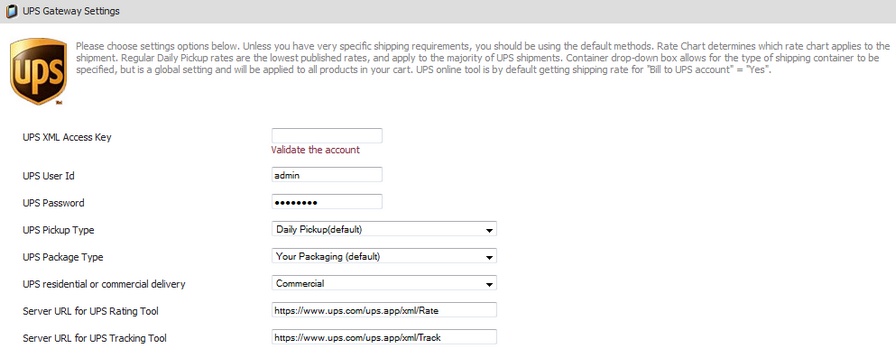
Figure 6-31-1: UPS Gateway Settings
4. USPS Gateway Settings: Enter the following information, as shown in the Figure 6-31-2 below. First you will need to get an account through http://www.uspswebtools.com/registration/
a. USPS Web Tools User ID: Enter the USPS Web Tools User ID.
b. USPS Server URL: Enter the USPS Server URL.
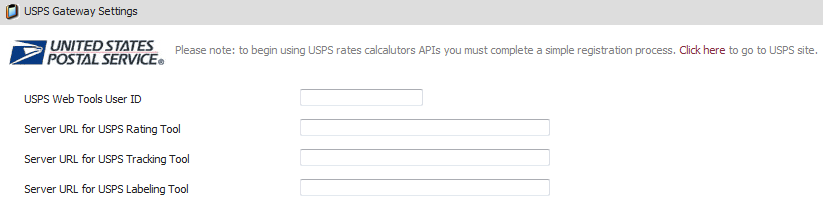
Figure 6-31-2: USPS Gateway Settings
5. Canada Post Gateway Settings: Insert your Merchant ID into the 'Canada Post Merchant ID' field after going to
http://www.canadapost.ca/ to sign up for an account. You will need to get your Server URL for Canada Post Rating tool from Canada Post. Do not change the values in 'Server URL for Canada Post Tracking tool'.
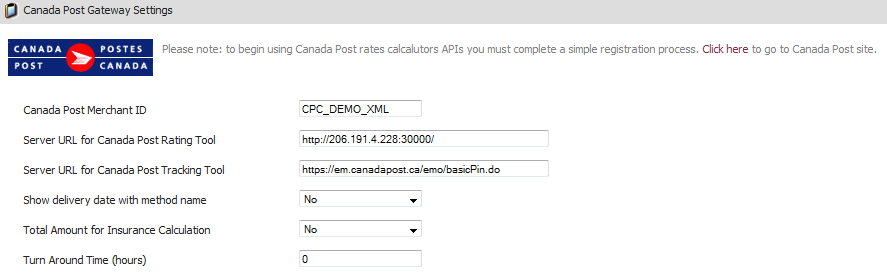
Figure 6-31-3: Canada Post gateway Settings
6. FedEx Gateway Settings: Enter the following information, as shown in the Figure 6-31-3 below.
a. FedEx Account Number: Enter the FedEx Account Number.
b. FedEx Meter: Enter the FedEx Meter.
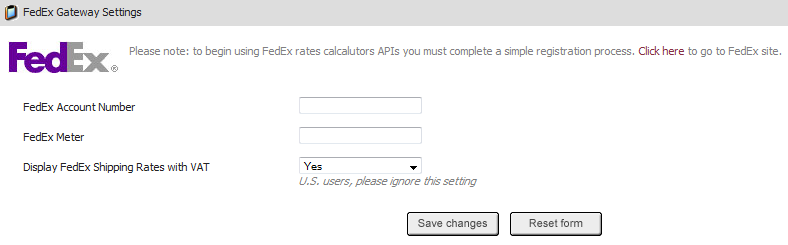
Figure 6-31-4: FedEx Gateway Settings
7. If you want to cancel or start again, click on the Reset form button.
8. Click Save changes button to save details.
Note: You can also generate FedEx Meter Number, by clicking on  icon or Generate FedEx Meter Number link.
9. Generate FedEx Meter Number: Click icon or Generate FedEx Meter Number link to open the Generate FedEx Meter Number Page, as shown in the Figure 6-31-4 below.
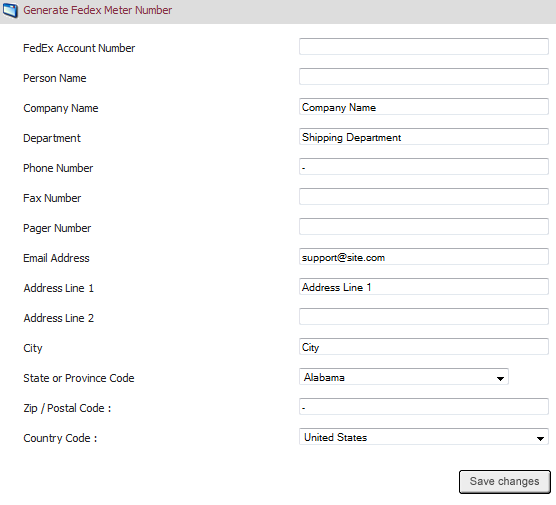
Figure 6-31-5: Generate FedEx Meter Number
10. Enter the information under Generate FedEx Meter Number and click Save changes button.
11. If you want to cancel or start again, click on the Reset form button.