Navigation: Marketing > Google >
Conversion Tracking


|
Navigation: Marketing > Google > Conversion Tracking |
|
To use Google Analytics Conversion Tracking, follow the steps below.
1. Open the Marketing : Google page.
2. Click on Conversion Tracking tab to open Conversion Tracking page, as shown below.
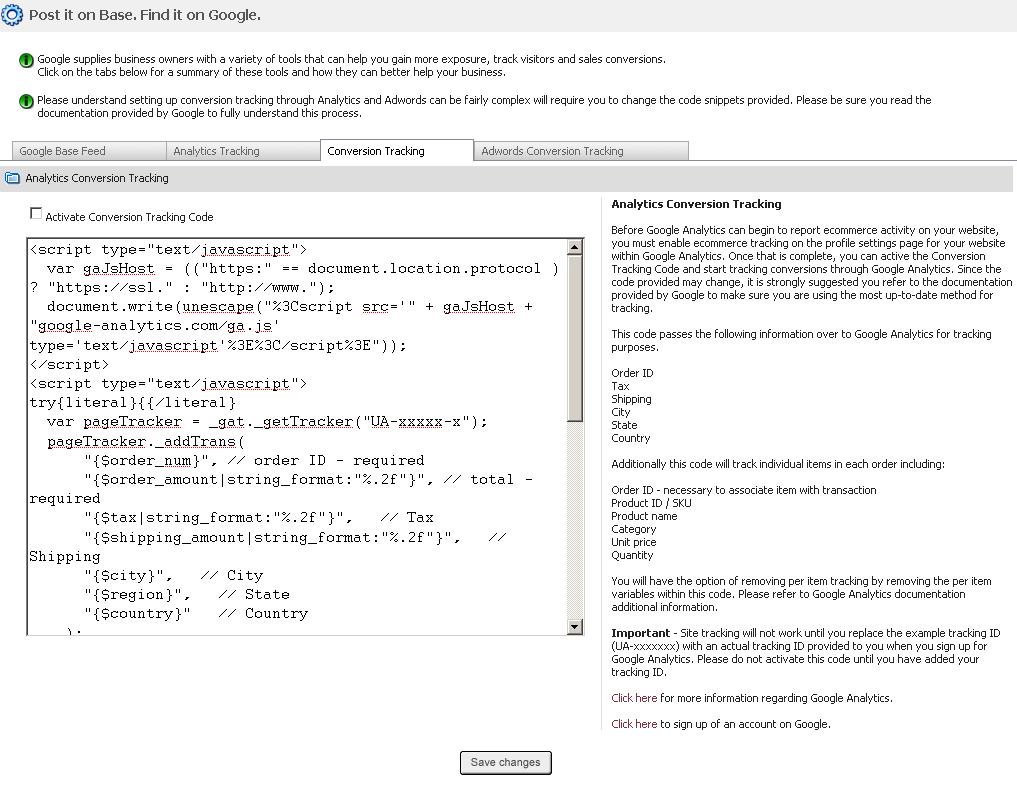
Before Google Analytics can begin to report ecommerce activity on your website, you must enable ecommerce tracking on the profile settings page for your website within Google Analytics. Once that is complete, you can active the Conversion Tracking Code and start tracking conversions through Google Analytics. Since the code provided may change, it is strongly suggested you refer to the documentation provided by Google to make sure you are using the most up-to-date method for tracking.
This code passes the following information over to Google Analytics for tracking purposes.
Order ID
Tax
Shipping
City
State
Country
Additionally this code will track individual items in each order including:
Order ID - necessary to associate item with transaction
Product ID / SKU
Product name
Category
Unit price
Quantity
You will have the option of removing per item tracking by removing the per item variables within this code. Please refer to Google Analytics documentation additional information.
Important - Site tracking will not work until you replace the example tracking ID (UA-xxxxxxx) with an actual tracking ID provided to you when you sign up for Google Analytics. Please do not activate this code until you have added your tracking ID.
Click here for more information regarding Google Analytics.
Click here to sign up of an account on Google.