Navigation: Cart Settings >
Edit Taxes


|
Navigation: Cart Settings > Edit Taxes |
|
Setting up USA based taxes:
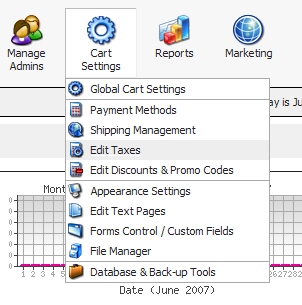
| • | Go to 'Edit Taxes' page under 'Cart Settings'. |
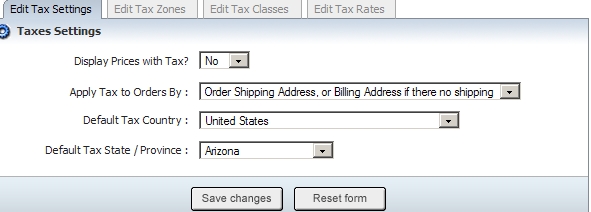
| • | Define settings for the tax you are creating under 'Edit Tax Settings' tab. 'Default Tax Country' and 'Default Tax State' are used to calculate taxes on product page(s) before user logs in for VAT. |
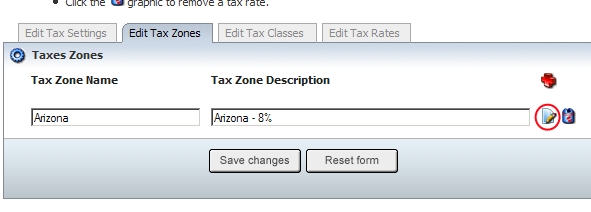
| • | Add tax zone under 'Edit Tax Zones' tab. Create a zone then click on pencil icon to add counties and states to the zone. Please note that without defining the zone (country and states details for zone) taxes will note work. |
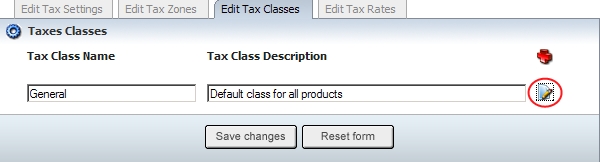
| • | Add class under 'Edit Tax Classes' tab. Class is nothing but group of product which you can use to define taxes. Classes allow you to apply different tax rate to different products. Create a class then click on pencil icon to add products to the class. |
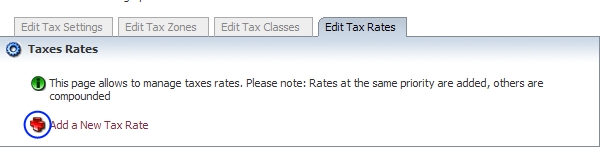
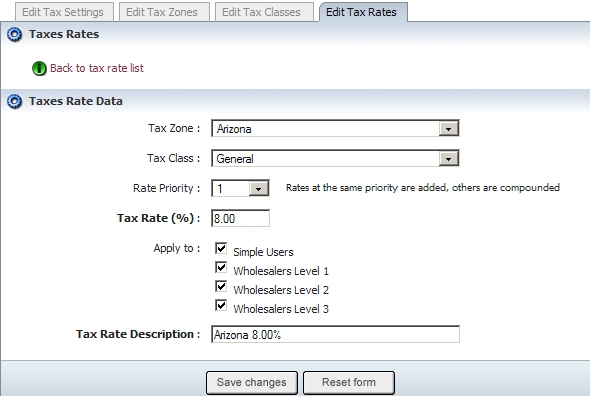
| • | Final step is 'Edit Tax Rates'. Click on 'Add a New Tax Rate' link to add a tax rate to a zone. Choose appropriate zone and class for the rate. |
| • | 'Apply to' section allows you to define different tax for different type of users or eliminate any kind of user from tax rule. An example would be setting a tax for a retail customer, but not having that tax apply to a wholesaler. If tax is applicable for all users of your site then select all check boxes under 'Apply to' section. |
| • | After you complete this page, you should now have a working tax scheme setup. |